Open your Photos app and scroll. Chances are a big part of what you see is screenshots: a price you wanted to remember, a chat, a map, a recipe. Most were useful for one day. Here is how to delete them all without losing the few that matter.
To delete screenshots on iPhone, open Photos, tap Albums, scroll to Media Types, tap Screenshots, tap Select, pick the ones you want and tap the trash icon. On Android, open the Screenshots album in your gallery, select the items and delete. Then empty Recently Deleted or Trash, because the space only comes back after that.
Why do screenshots pile up so fast?
A screenshot takes one second, so we take them for everything: a receipt, a wifi password, a funny chat, a product we might buy. Nobody files them afterwards. They sit in the library between your real photos, and a screenshot of a long page can be large. After a year or two there can be hundreds of them, and almost none have been opened again.
How do I delete all screenshots on iPhone?
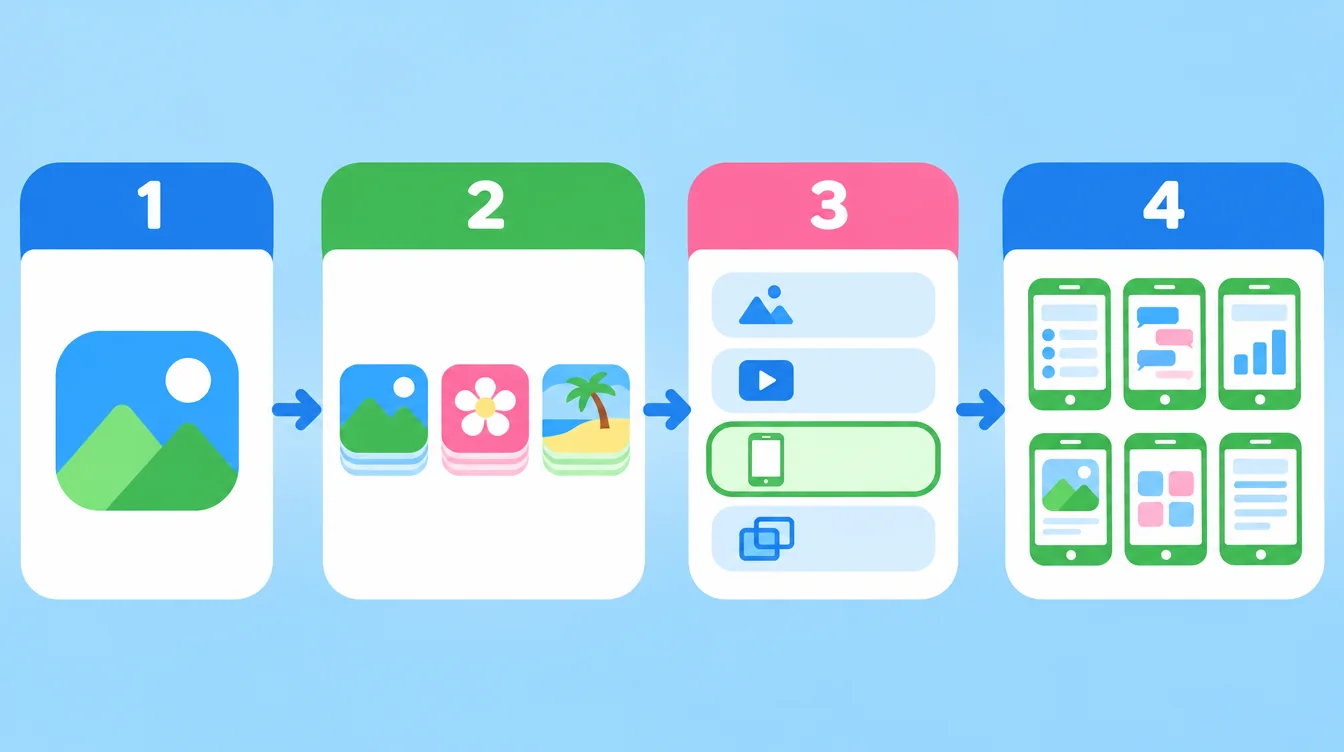
- Open Photos and tap Albums at the bottom.
- Scroll down to Media Types and tap Screenshots.
- Tap Select at the top right.
- Tap the screenshots you want to remove, or drag your finger across the grid to select many quickly.
- Tap the trash icon and confirm.
If iCloud Photos is on, deleting here also deletes the photo on your other devices. That is usually what you want for screenshots, but know it before you tap. If your storage is still full afterwards, read why iPhone storage stays full after deleting photos.
How do I delete all screenshots on Android?
Gallery apps differ by brand, but most work the same way:
- Open your gallery app and find the Screenshots album or folder.
- Press and hold one screenshot to start selecting.
- Select the rest, or use the select all option if your app has one.
- Tap delete and confirm.
On Android 11 and newer, most gallery apps move deleted items to a Trash or Recycle bin first, so you can still restore them for a while.
Why delete the oldest screenshots first?
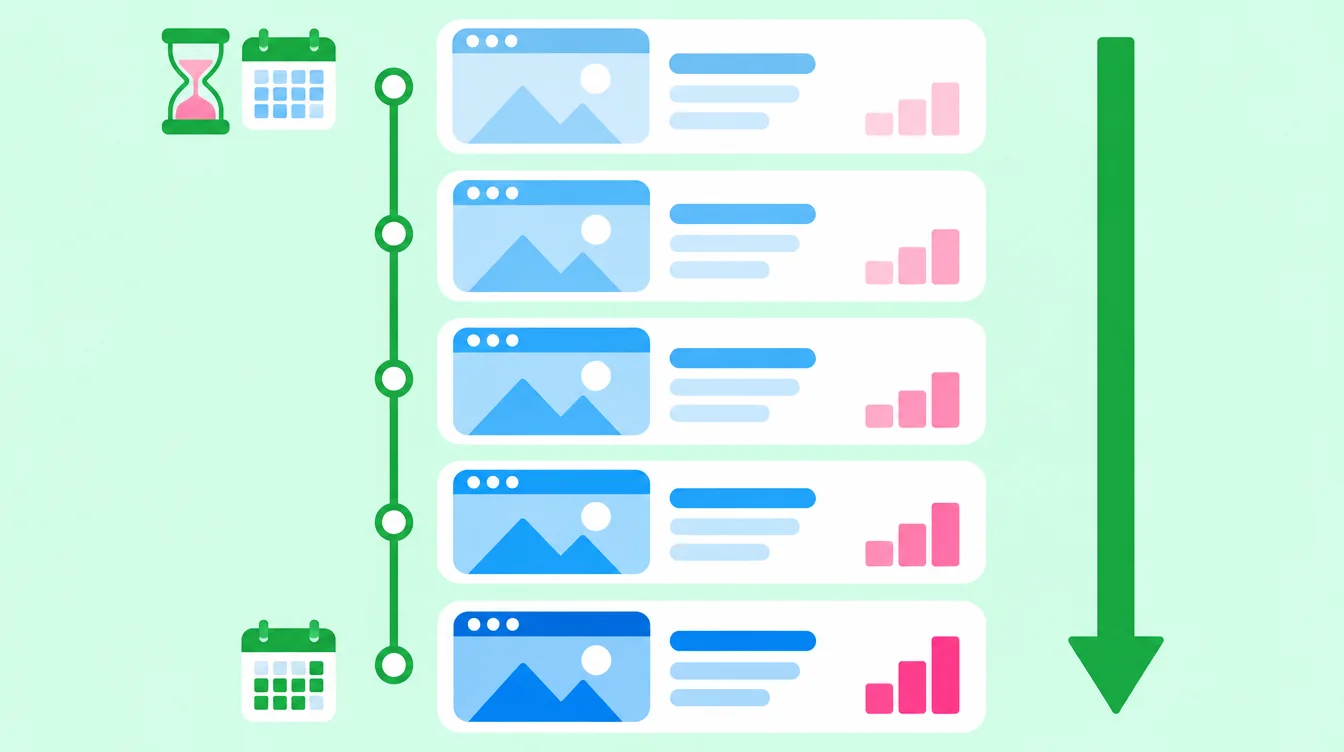
A screenshot from last week might still matter. One from two years ago almost never does. The trip is over, the parcel arrived, the chat is long finished. So sort your Screenshots album from the top of the timeline, oldest first, and clear a big block of them at once. This is the fastest win and the lowest risk.
What should I save before I delete?
Bulk delete is quick, so check for the few that are still useful. Look through the list once, or scan it fast, for these:
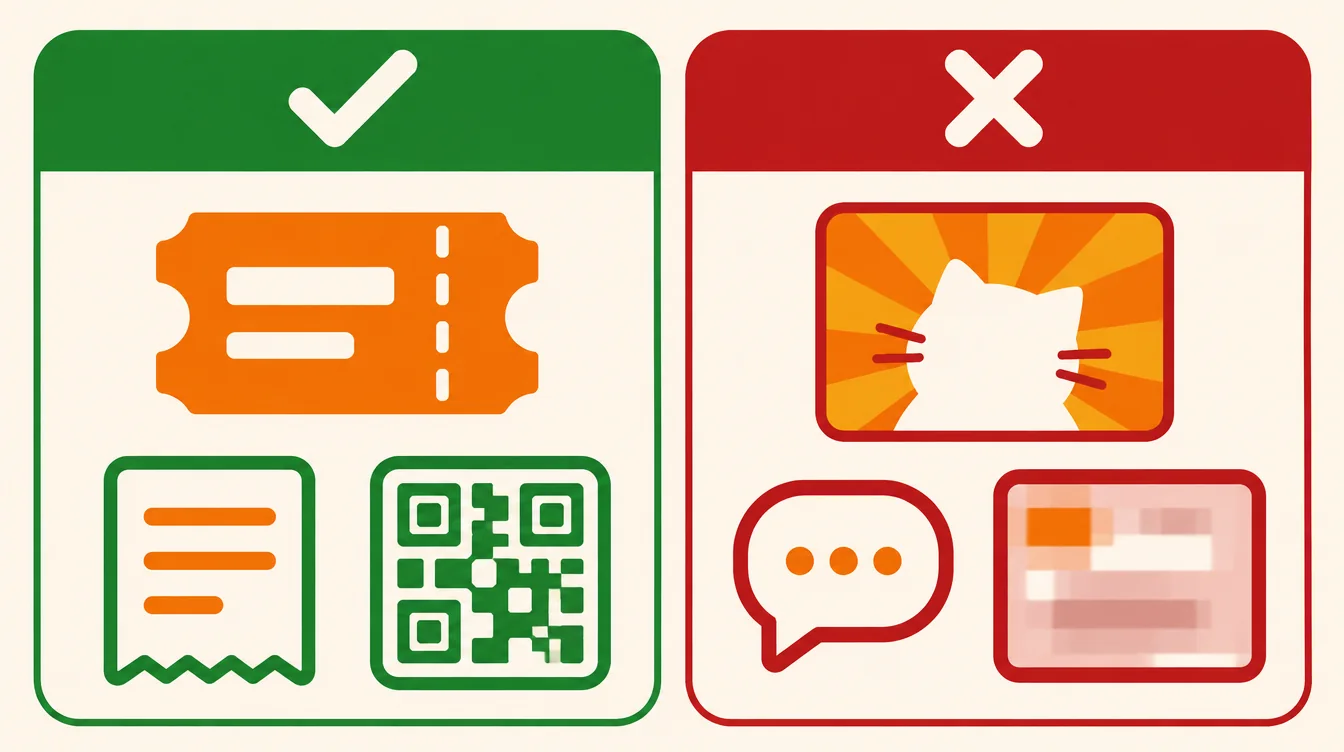
- Tickets and boarding passes you still need.
- QR codes for entry or payment.
- Receipts and proof of purchase for warranty or claims.
- Wifi passwords and codes you cannot get again.
Save these into an album, a notes app or a folder first. Memes, old chats, forgotten product pages and one-time maps can go.
How do I delete screenshots in one go with Floosh?
The manual way works, but scrolling through hundreds of screenshots is slow. Floosh is a photo cleaner for iPhone and Android that scans on your phone and has a Screenshots category with the oldest ones shown first. Open the category, review the items, and press and hold any screenshot to view it in full before you decide.
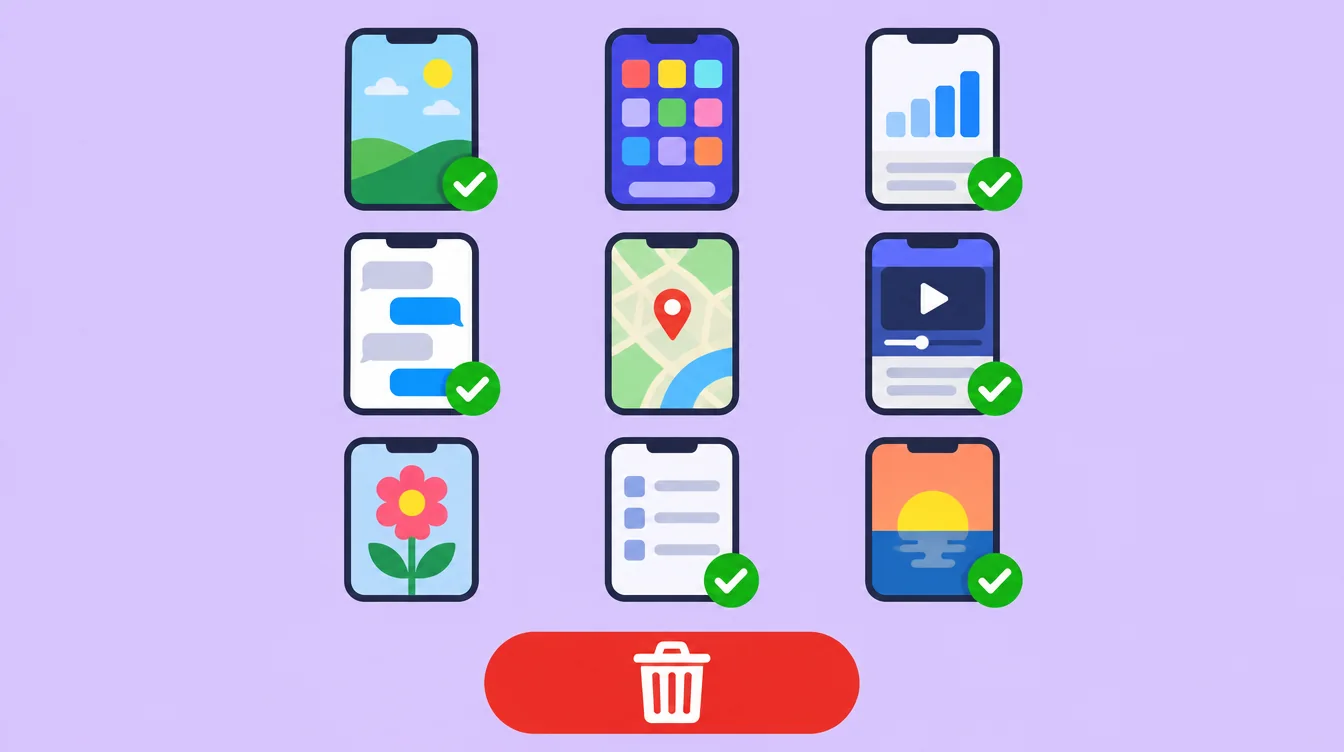
Nothing is deleted until you press delete and confirm in the iOS or Android system dialog. Floosh never suggests favourite photos, photos in your own albums or hidden photos. Your photos are not uploaded, there is no account and no ads. Scanning is free, and bulk delete from the free categories works up to 1 GB. If you prefer going one by one, the swipe mode puts rejects into a bin first, with undo. See the swipe to delete checklist for what to look for in such an app.
Why is my storage still full after deleting?
Deleted photos are not gone yet. On iPhone they go to Recently Deleted for about 30 days and still use space. To empty it: Photos, Albums, Recently Deleted, Select, Delete All. On Android, empty the Trash in your gallery app. Floosh cannot empty these folders for you, but it shows you where they are.
Download Floosh and try it free. Your next scan will show how many screenshots are waiting.
Free to try on iPhone and Android.
Questions? Visit Support