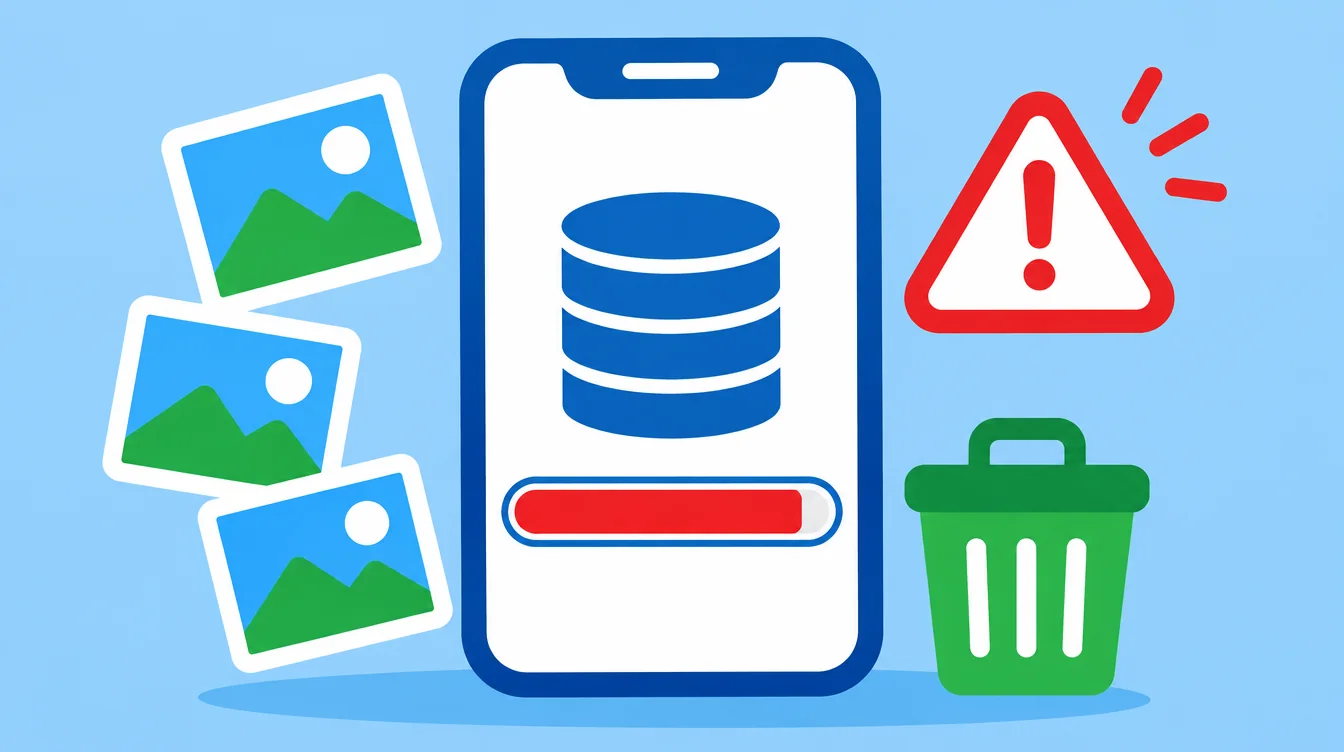
You deleted a pile of photos, opened Settings, and the storage bar still shows full. It feels like the iPhone is ignoring you. It is not broken. Deleted photos are not really gone yet, and photos are often not the only thing filling the phone.
If your iPhone storage is still full after deleting photos, the photos are most likely sitting in Recently Deleted, which keeps them for about 30 days and still uses space until you empty it. Also check iCloud Photos, restart the iPhone so the storage number updates, and look at app data.
Why is storage still full after deleting photos? Recently Deleted
When you delete a photo on iPhone, it moves to the Recently Deleted album. It stays there for about 30 days, then iOS removes it for good. While it sits there, it still uses space. So the storage bar only drops once that album is emptied.
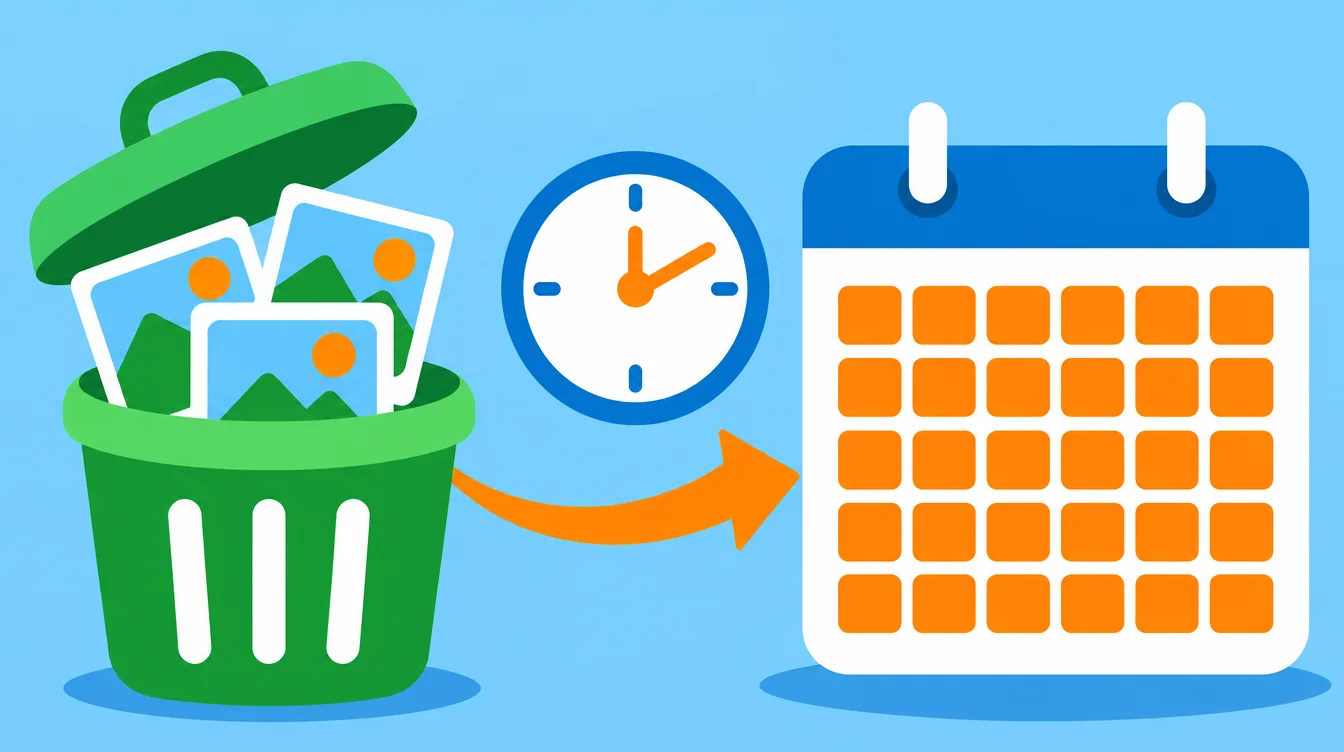
To free the space now, empty the album yourself:
- Open Photos and tap Albums.
- Scroll down to Utilities and tap Recently Deleted.
- Tap Select, then Delete All, and confirm.
Be sure first. Once you empty it, those photos cannot be restored.
Does iCloud Photos change anything?
Yes. With iCloud Photos on, your library is synced across your devices. Deleting a photo on your iPhone deletes it on your other devices too, and deleting it elsewhere removes it from the iPhone. It is one library, not a copy on each device.
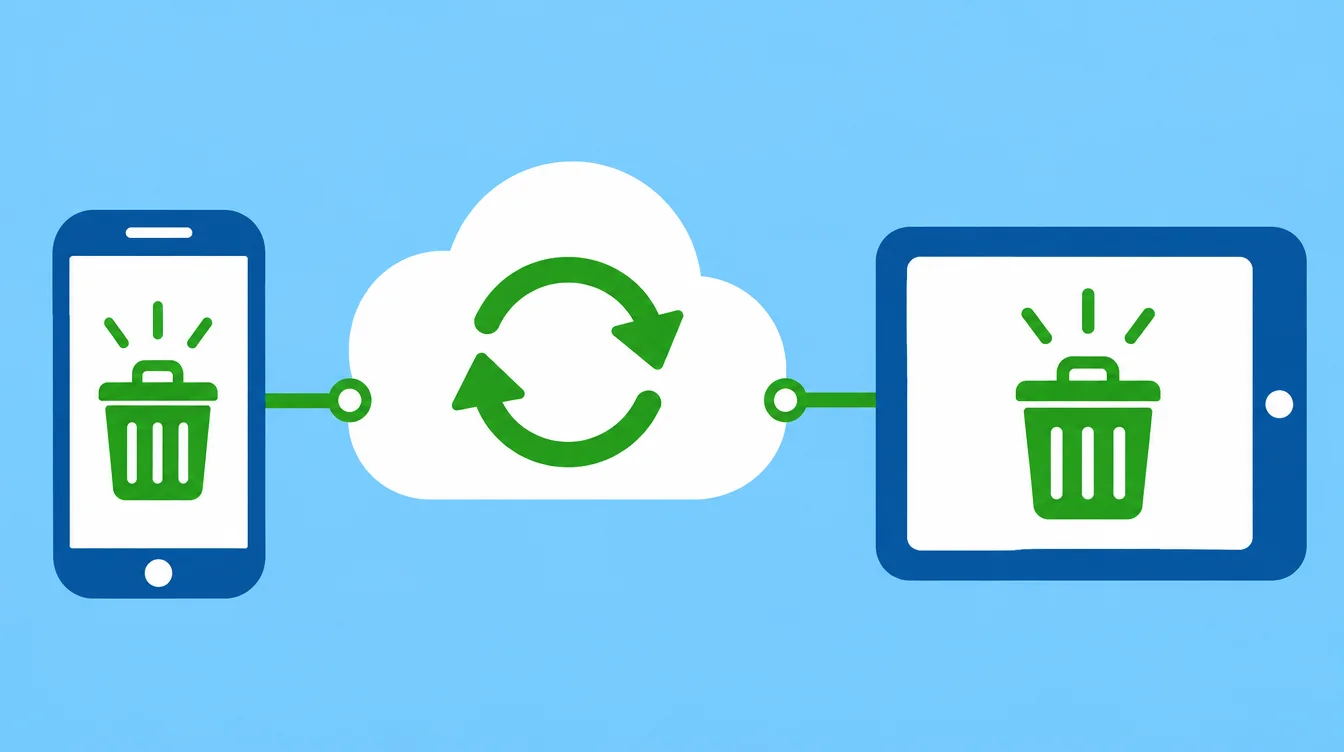
There is a second setting to know about. If Optimize iPhone Storage is on, the iPhone keeps smaller versions of your photos and the full-size originals stay in iCloud. If you chose Download and Keep Originals, the full files stay on the phone and take more room. You can check this in Settings, under your name, iCloud, then Photos.
Why does the storage number not change right away?
The storage figure in Settings does not always update the second you delete something. The iPhone needs time to finish the delete and recalculate. Wait a few minutes, then check again. If the number still looks wrong, restart the iPhone and open Settings, General, iPhone Storage once more.
What else fills iPhone storage besides photos?
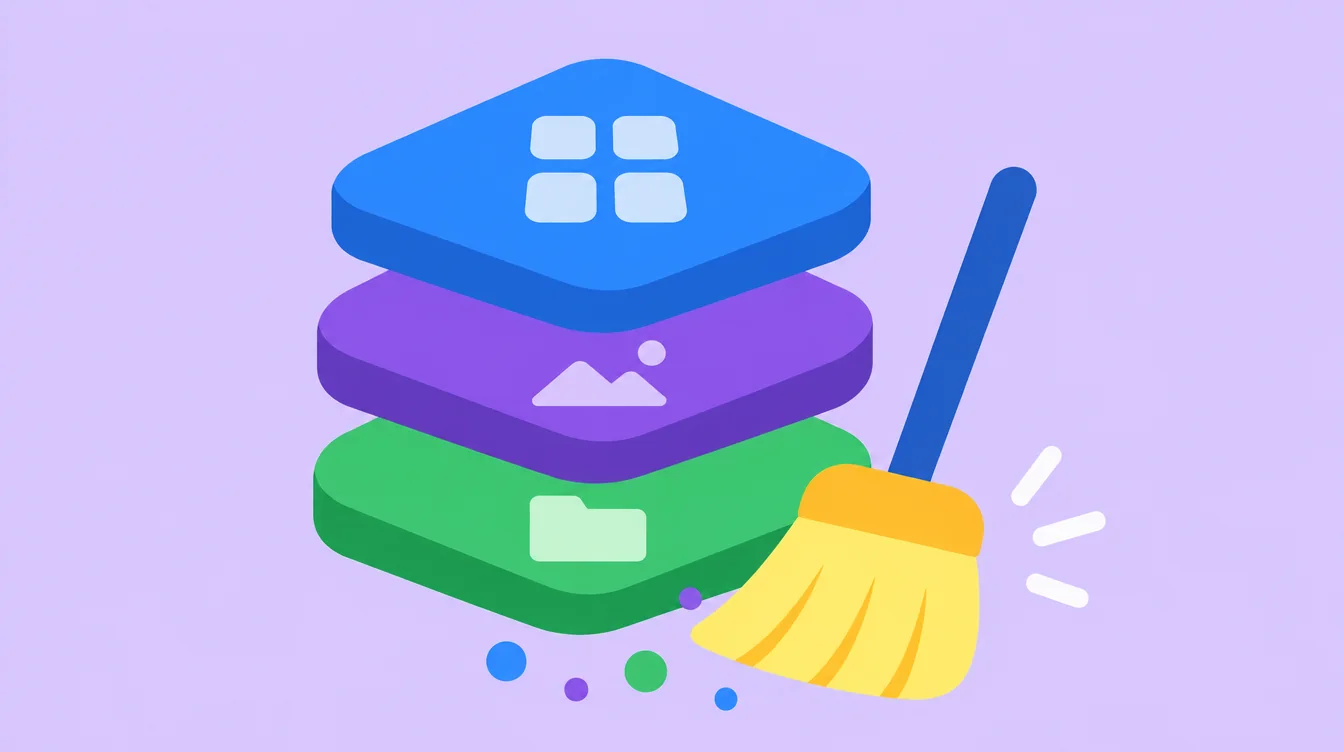
Photos are only one slice. Open Settings, General, iPhone Storage and look at the list of apps. You may find that the problem is somewhere else. Common places to check:
- Apps you rarely use. Offload Unused Apps removes the app but keeps its documents and data.
- Media saved by chat apps, such as photos and videos from group chats.
- Safari history and website data.
- Downloaded music, podcasts and videos you no longer watch.
Every iPhone is different, so there is no fixed number to expect. Start with the biggest apps in the list and work down.
What should you delete first?
Before you touch anything important, clear out what you will not miss. Similar and duplicate photos pile up fast from burst shots and retakes. Old screenshots are rarely needed after a week. Large videos free the most space per file, but Photos does not sort videos by file size, so they take effort to find.
How does Floosh help?
Floosh is a photo cleaner for iPhone. A scan runs on your phone when you ask for it, so photos are never uploaded, and there is no account and no ads. It groups similar photos and suggests the best one, lists the largest videos first, and shows the oldest screenshots first. Swiping left only moves a photo to the Floosh bin, it does not delete it. Photos are deleted only after you tap delete and confirm in the iOS dialog.
Floosh never suggests your favourites, photos in your own albums or hidden photos. After every delete, it shows you the Recently Deleted steps, because that is the step most people miss. Floosh cannot empty that folder for you, so you still do the last tap.
What is the quick fix checklist?
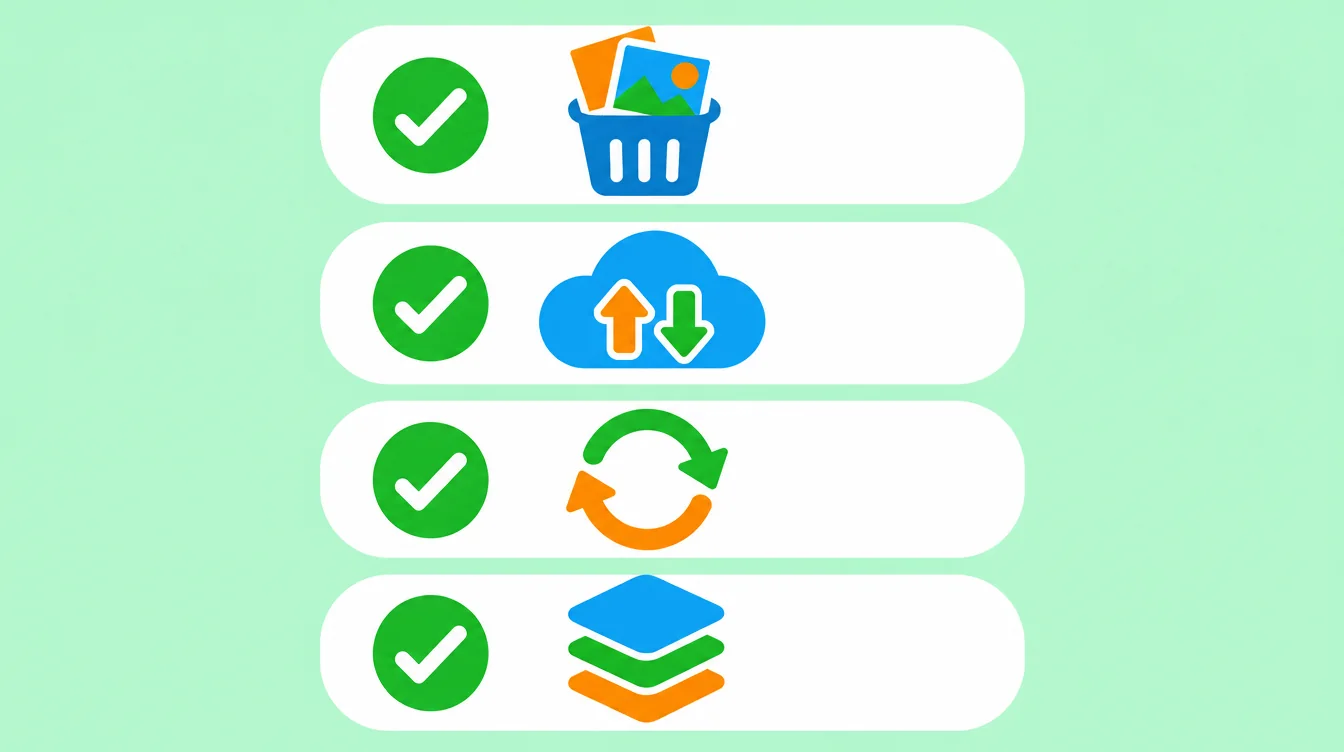
- Empty Recently Deleted in Photos, Albums, Utilities.
- Check iCloud Photos and Optimize iPhone Storage, then restart the iPhone and check the number again.
- Open iPhone Storage and offload unused apps or clear heavy app data.
- Delete what you do not need first: similar photos, screenshots and large videos.
Want a faster way to find what to delete? Download Floosh. It is free to start.
Free to try on iPhone and Android.
Questions? Visit Support