
If your storage is full and you cannot work out why, look at your videos first. A handful of long clips can take more room than your whole photo library. The hard part is finding them, because Photos does not make it easy.
To delete large videos on iPhone, open Photos, go to Albums, then Media Types, then Videos, and check the longest clips first. Photos cannot sort by file size, so a tool like Floosh that lists the biggest videos first saves time. Delete, then empty Recently Deleted to free the space.
Why do videos use the most space?
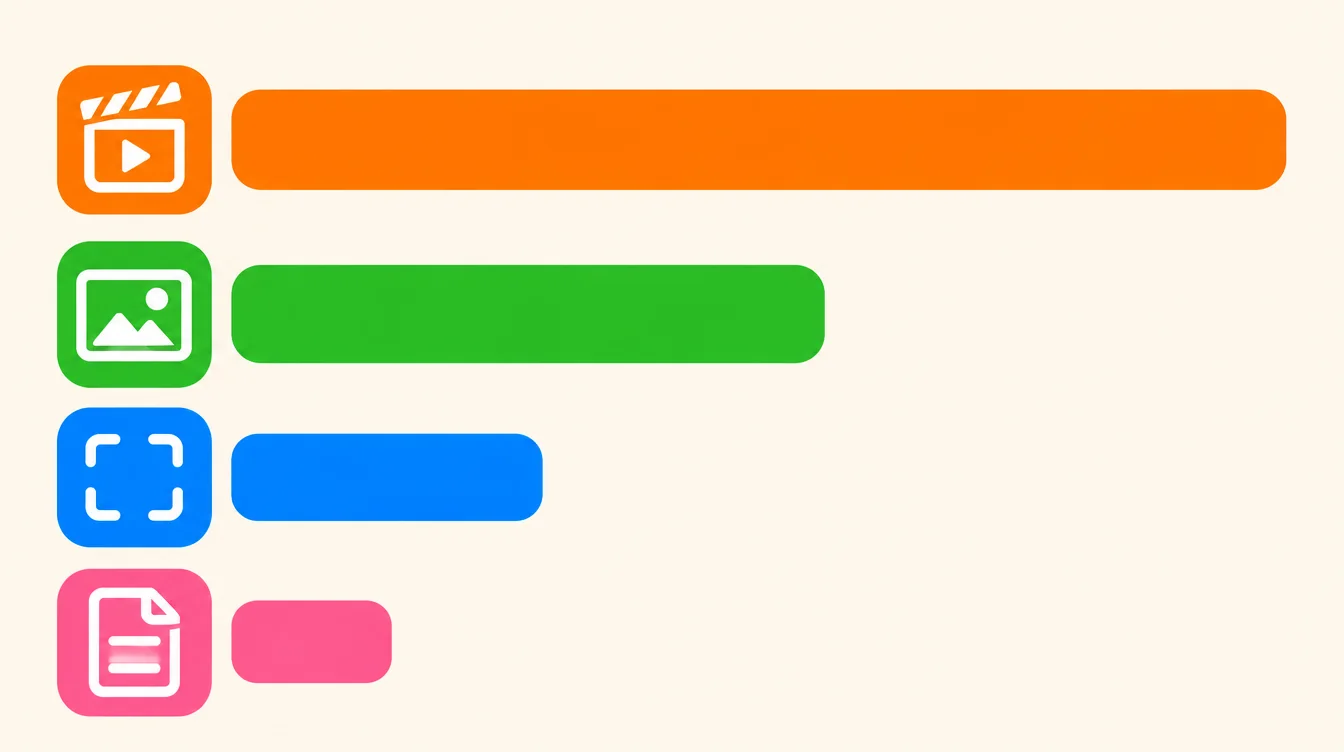
A photo is a single frame. A video is dozens of frames every second, and it keeps going for as long as you filmed. One ten-minute clip can easily outweigh hundreds of photos.
That is why a few forgotten recordings can be the reason you see Storage Full. It also means videos are the fastest way to get space back. Removing ten big clips can free more than removing a thousand photos. If you have already cleared photos and the warning stayed, read why iPhone storage is still full after deleting photos.
How do you find large videos on iPhone?
The built-in way works, but it is manual:
- Open Photos and tap Albums.
- Scroll down to Media Types and tap Videos.
- Scroll through the grid. Every video shows its length in the corner.
- Tap Select, choose the ones you no longer need, and tap the bin.
The catch is that Photos does not sort videos by file size. Length is only a rough guide, so a short clip can still be heavy. You end up opening clips one by one to judge them.
What should you check first?
You do not need to look at everything. Go through these in order:
- Long videos, such as events, lectures or recordings you filmed and never watched again.
- Old screen recordings. People record a screen to show a bug or save a clip, then forget about it.
- Slo-mo clips. They are recorded at a high frame rate, so they tend to be large for how short they are.
- Duplicates of the same moment, where you filmed the same thing two or three times.
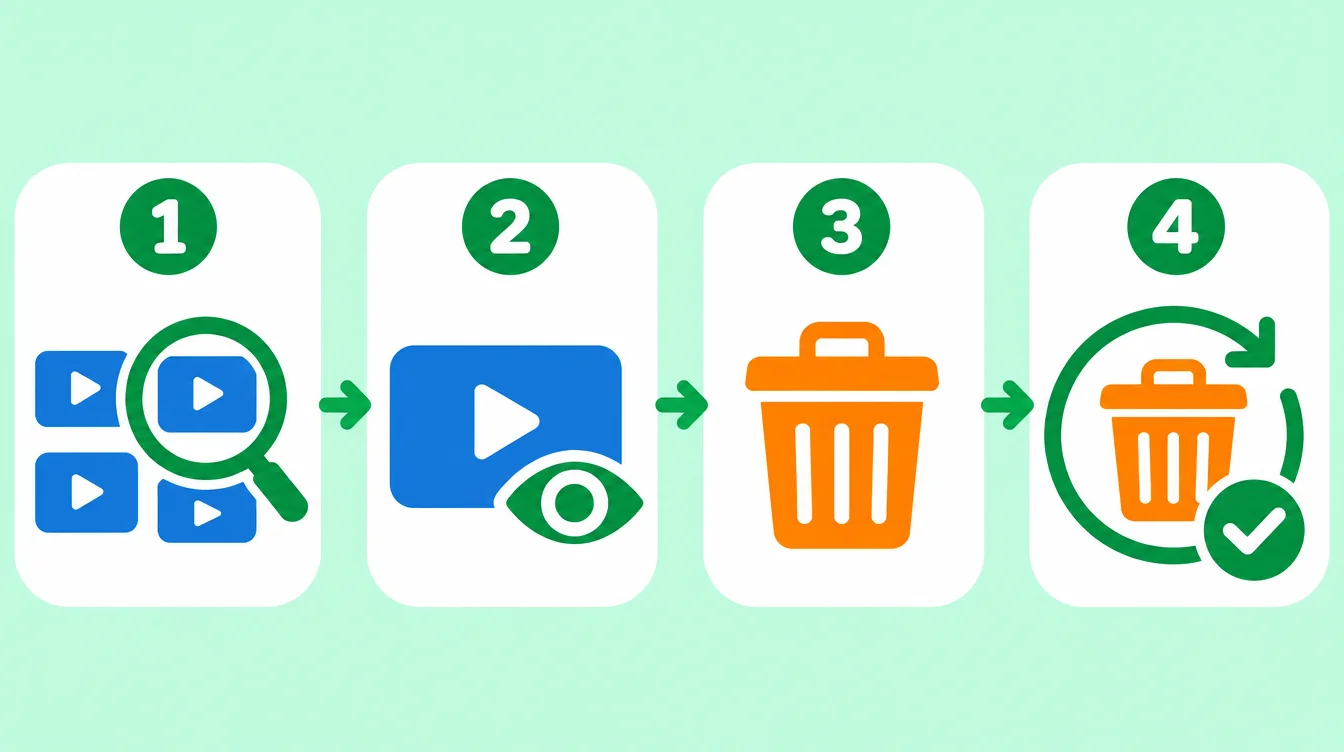
Work in this order: find, watch, delete, then empty the Trash. Skipping the last step is the most common reason the space does not come back.
How do you decide what to keep?
Videos are harder to judge than photos, because you cannot tell much from a thumbnail. Ask yourself one question for each clip: would I miss this?
- Yes, and it matters: keep it, but make sure it is backed up.
- Yes, but not on this phone: copy it to a computer or cloud storage, check that it opens there, then delete it from the phone.
- No: delete it.
Be careful if iCloud Photos is on. Deleting a video on one device deletes it on your other devices too. Also, Optimize iPhone Storage only keeps small versions on the phone, so back up before you delete anything you care about.

What about Android?
Gallery apps differ by brand, but the idea is the same. Open your gallery, find the Videos album or filter, and look through the longest clips. Many gallery apps on Android 11 and newer have a Trash or Recycle bin, so deleted videos stay there until you empty it. Check the Trash after you delete, because the space is not free until then.
How can Floosh find large videos for you?
Floosh does the sorting that Photos does not. After a scan on your phone, open the Large videos category. Your biggest videos are at the top, with the largest first, so you can free the most space in the fewest taps.
Before you decide, press and hold a video and choose View full. You can watch the whole clip first, then swipe it into the bin or keep it. Swiping left only moves it to the Floosh bin. Nothing is deleted until you press delete and confirm in the iOS or Android system dialog. Floosh never suggests favourites, photos in your own albums or hidden ones.

Do you need to empty Recently Deleted?
Yes. On iPhone, deleted videos stay in Recently Deleted for about 30 days and still use space until you empty it. Go to Photos, Albums, Recently Deleted, tap Select, then Delete All. On Android, empty the Trash in your gallery app. Floosh cannot empty these folders for you, but it shows you how. The same applies to old screenshots and similar photos.
Download Floosh and scan your phone. It is free to start, and bulk delete from the free categories works up to 1 GB.
Free to try on iPhone and Android.
Questions? Visit Support